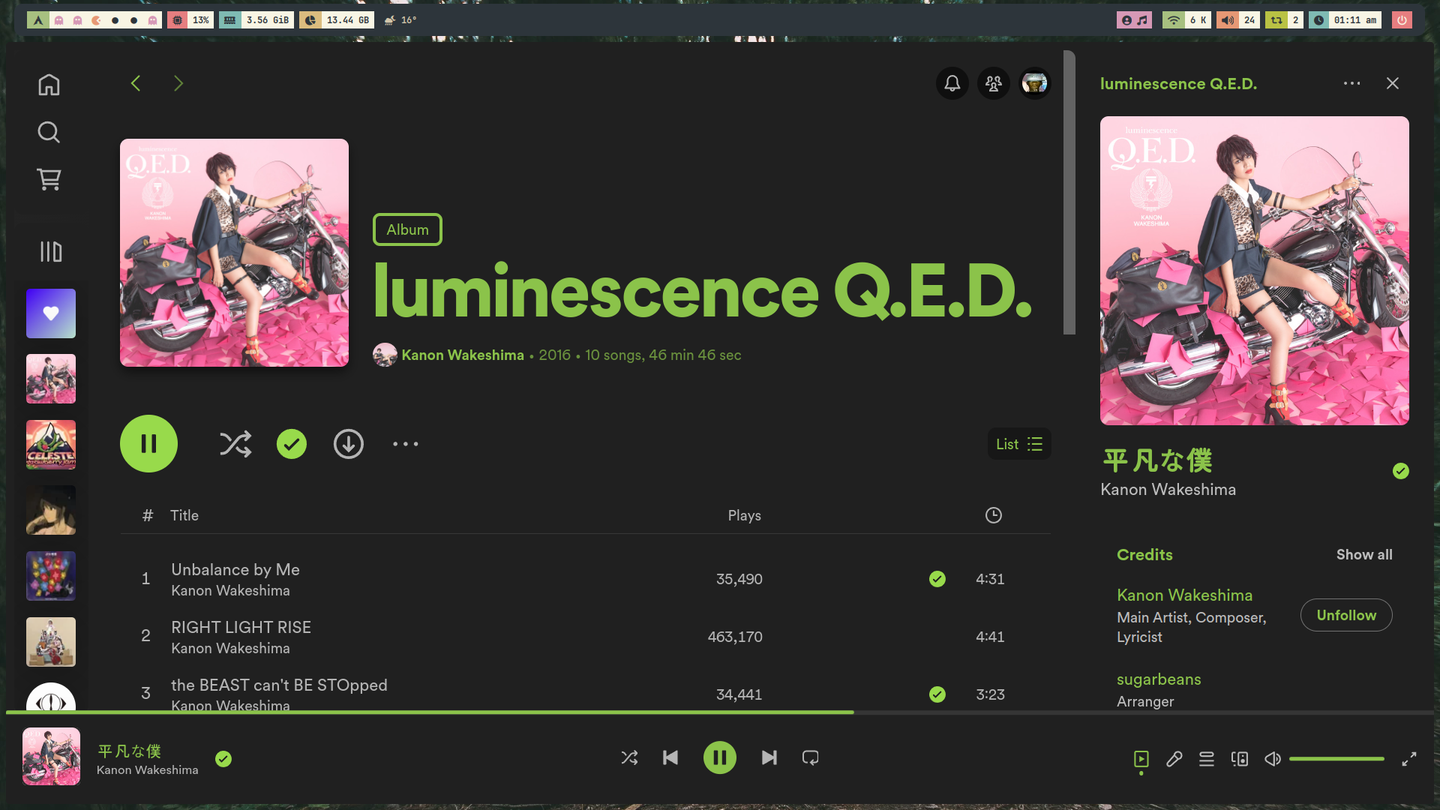
Today I was using my Arch Linux while listening to my favorite singer, Kanon Wakeshima, an amazing Japanese artist. But I realized that most of her discography is blocked in other countries, including my favorite albums.
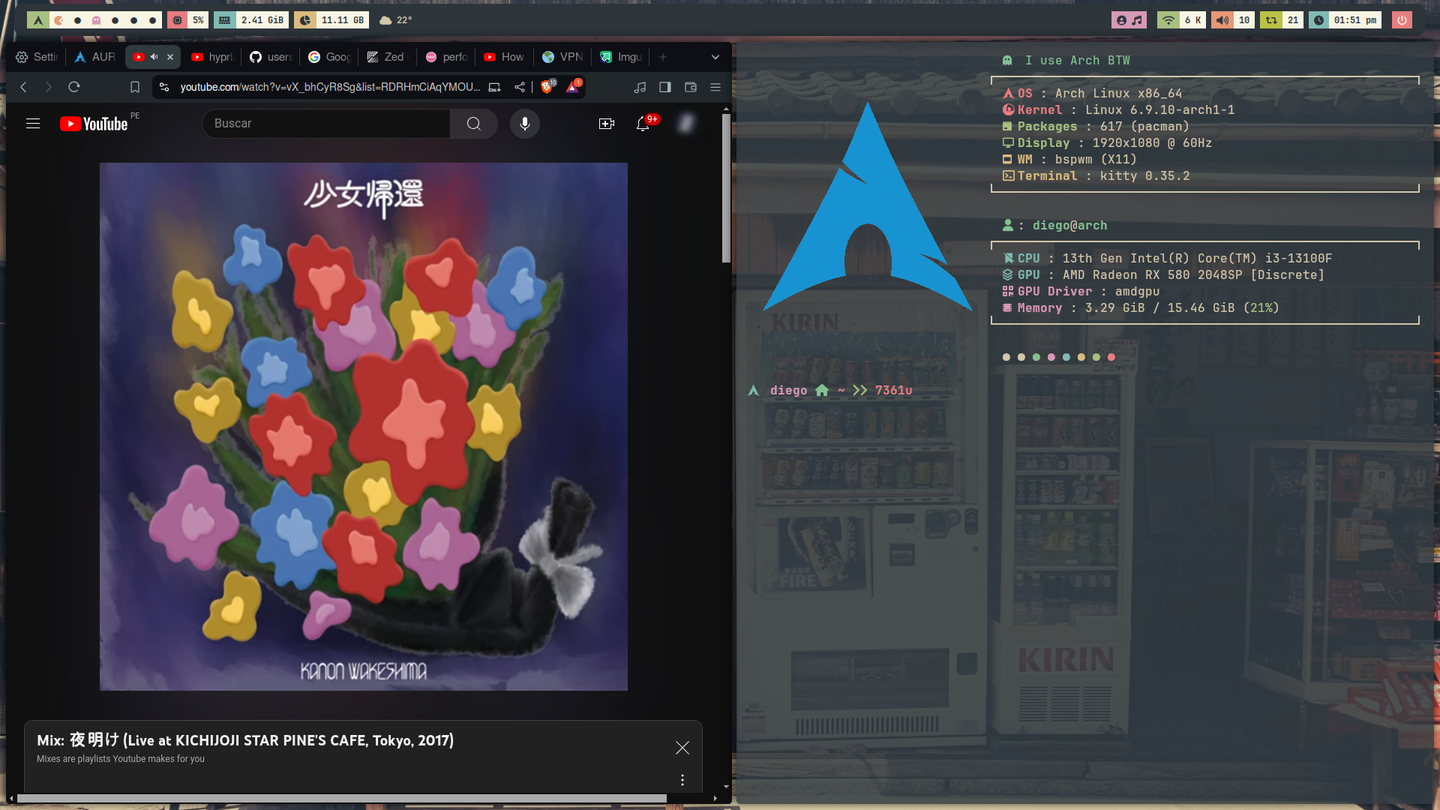
So I've been using Spotify with a Japanese account for a couple of years now so I can access their entire music library. But the downside is that I can’t log in unless I’m “in” Japan, so what I do is use a VPN to connect and then log out so I don’t use up my free data allowance. In my case, I use ProtonVPN since they offer free VPNs in Japan.
On Windows and Android, Proton makes it easy by providing an app. On Linux too, but only for certain distros—the simpler ones. In my case, I’m using ArchLinux (with the BSPWN window manager and the Gh0stzk's dotfiles (for those interested). And this gets more complicated—I ran into a lot of errors at first with Proton's Linux app, but there’s a more complex—and, I’d say, better—way, since Proton’s current free plan doesn’t let you connect to any country you want; instead, it’s random among five countries and keeps switching with a 20-minute cooldown. So it’s a pain.
This more complex method involves using OpenVPN with Proton's VPNs.
Step 1
First of all, you'll need a Proton VPN configuration file, which can be found at the Proton Downloads Page. This OpenVPN configuration section can be found below the ProtonVPN client download section.
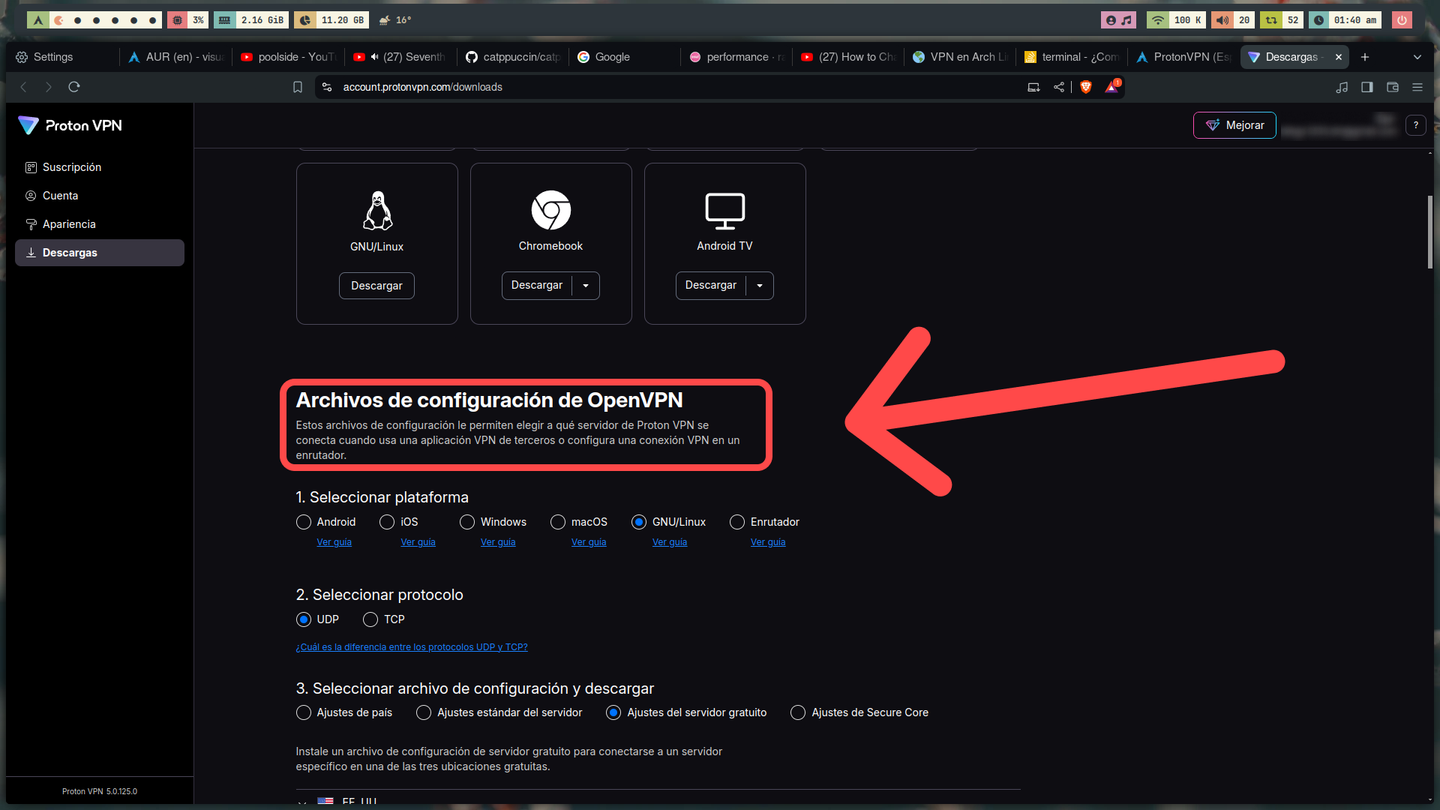
Here, we'll choose:
- The platform (in my case, Linux)
- The protocol (the one that is set by default)
- Server Settings (The free one xD)
- Country (In my case, Japan)
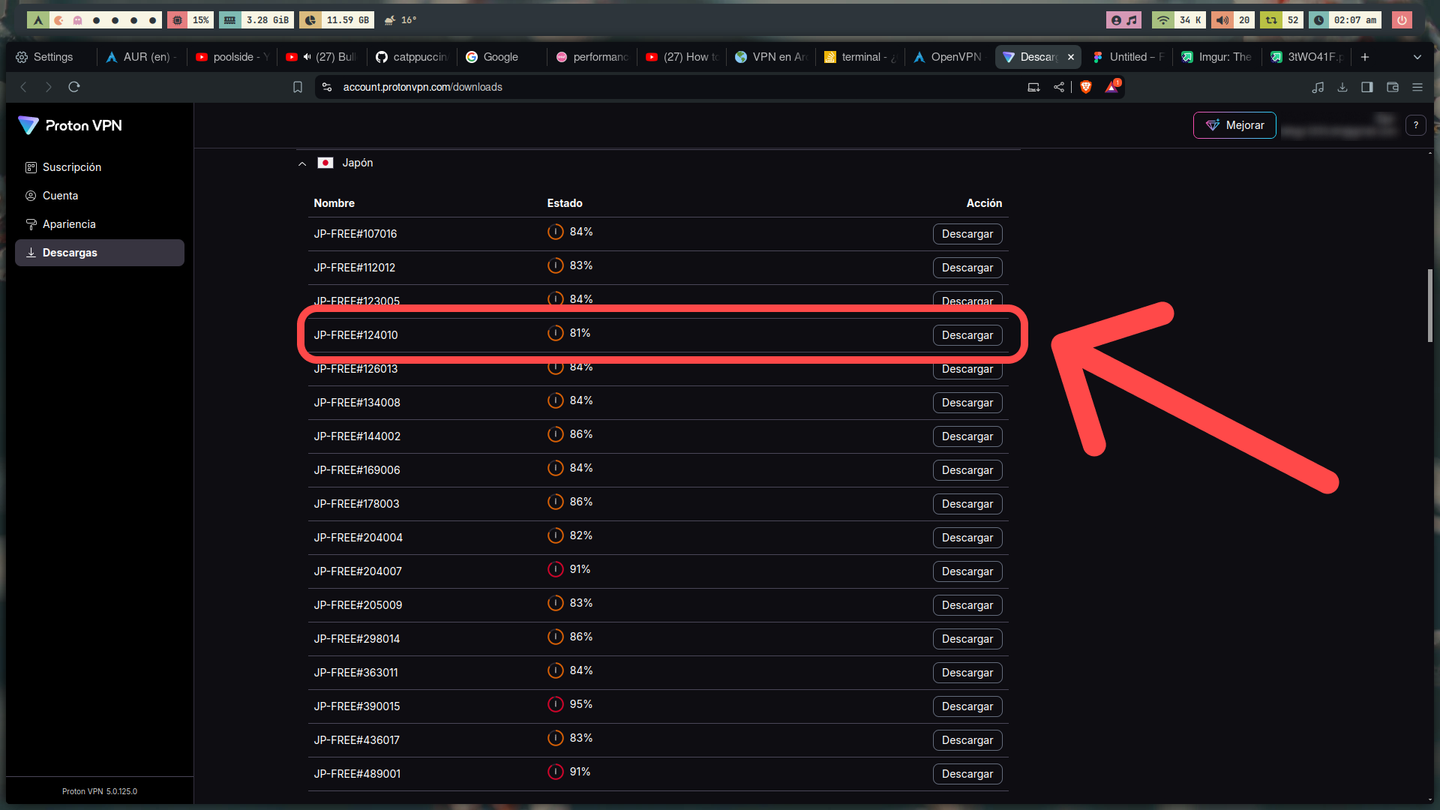
Always choose the server with the lowest percentage.
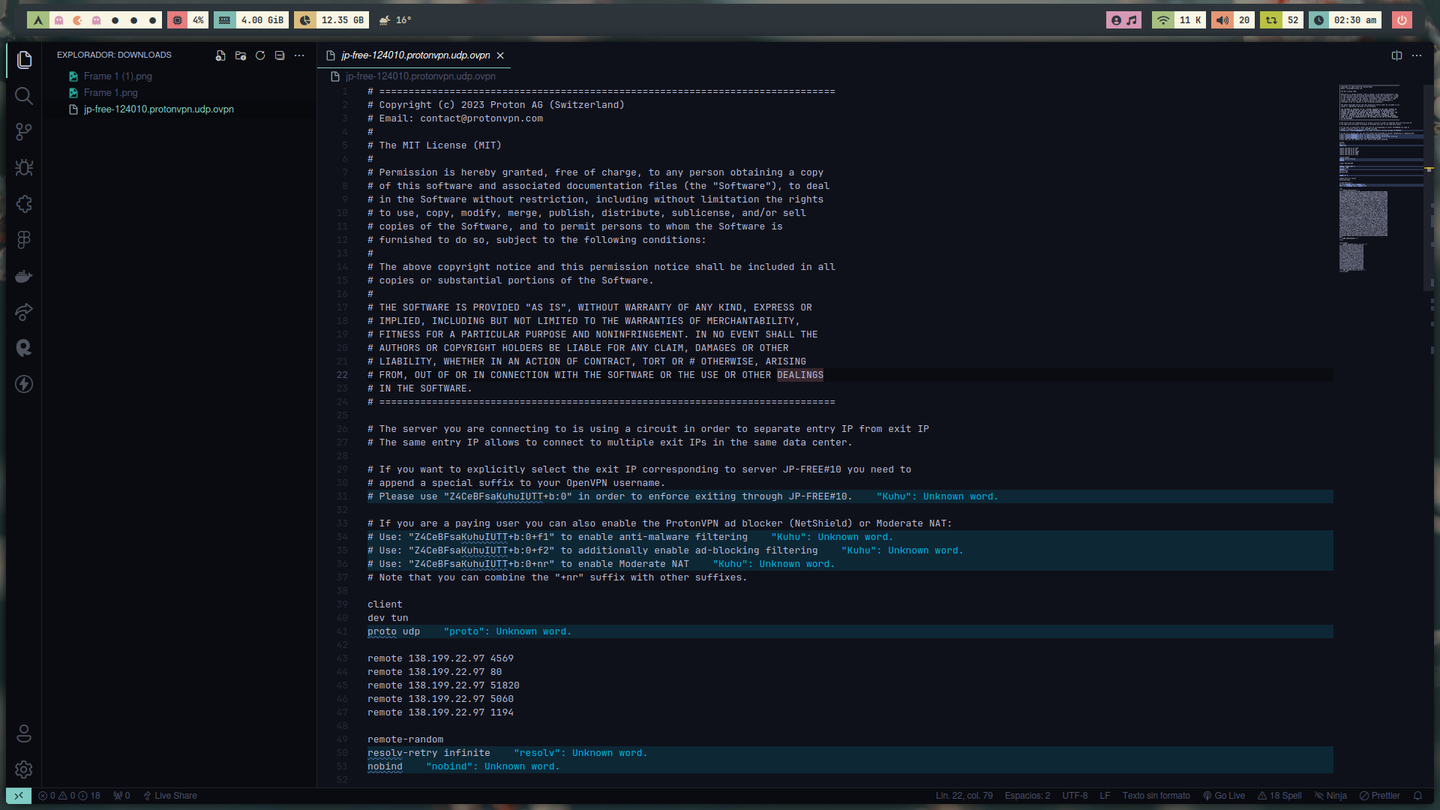
Now that we have our configuration file, we can open it with a text editor of our choice—in my case, VSC:
Step 2
Let's continue with the OpenVPN configuration. In this step, you'll need to check your Systemd version. It's most likely higher than version 229; if not, you can visit the Official forum for this guide.
If it is higher, we'll first need to download this AUR:
# Script usando Paru
paru -S openvpn-update-systemd-resolved
After the download finished, you should have seen this message at the end:
To complete the installation, please add this script to your OpenVPN
settings for each of the VPNs you wish it to manage the DNS for:
    script-security 2
    up /usr/bin/update-systemd-resolved
    up-restart
    down /usr/bin/update-systemd-resolved
    down-pre
Step 3
The question is where to place this script in the configuration file. We'll put it before the tokens.
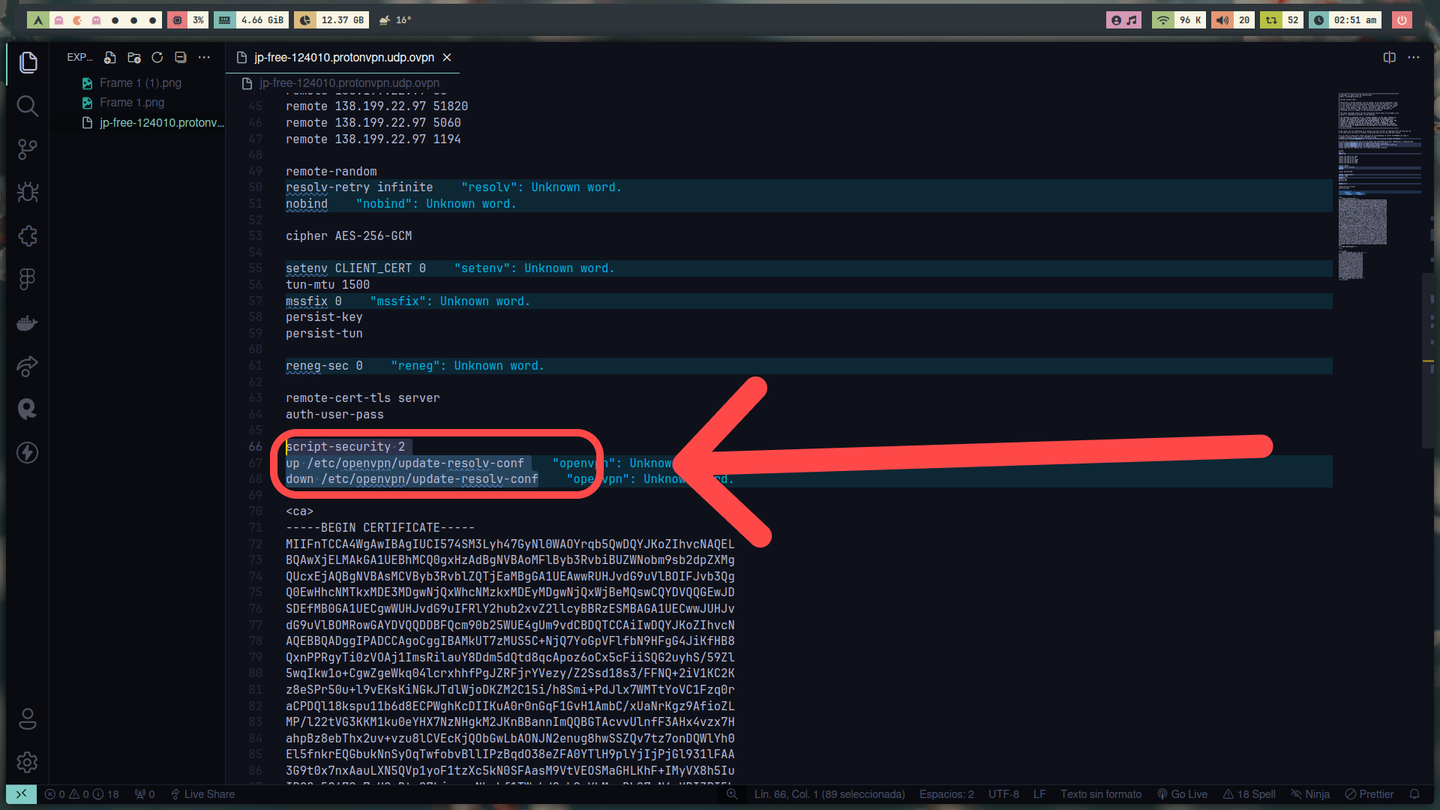
Here we can see that above the "toquen" section there is a script similar to the one we have, but it's missing a few lines, so we'll replace those with what the AUR provided.
# Scripts previos

script-security 2
up /usr/bin/update-systemd-resolved
up-restart
down /usr/bin/update-systemd-resolved
down-pre

# Tokens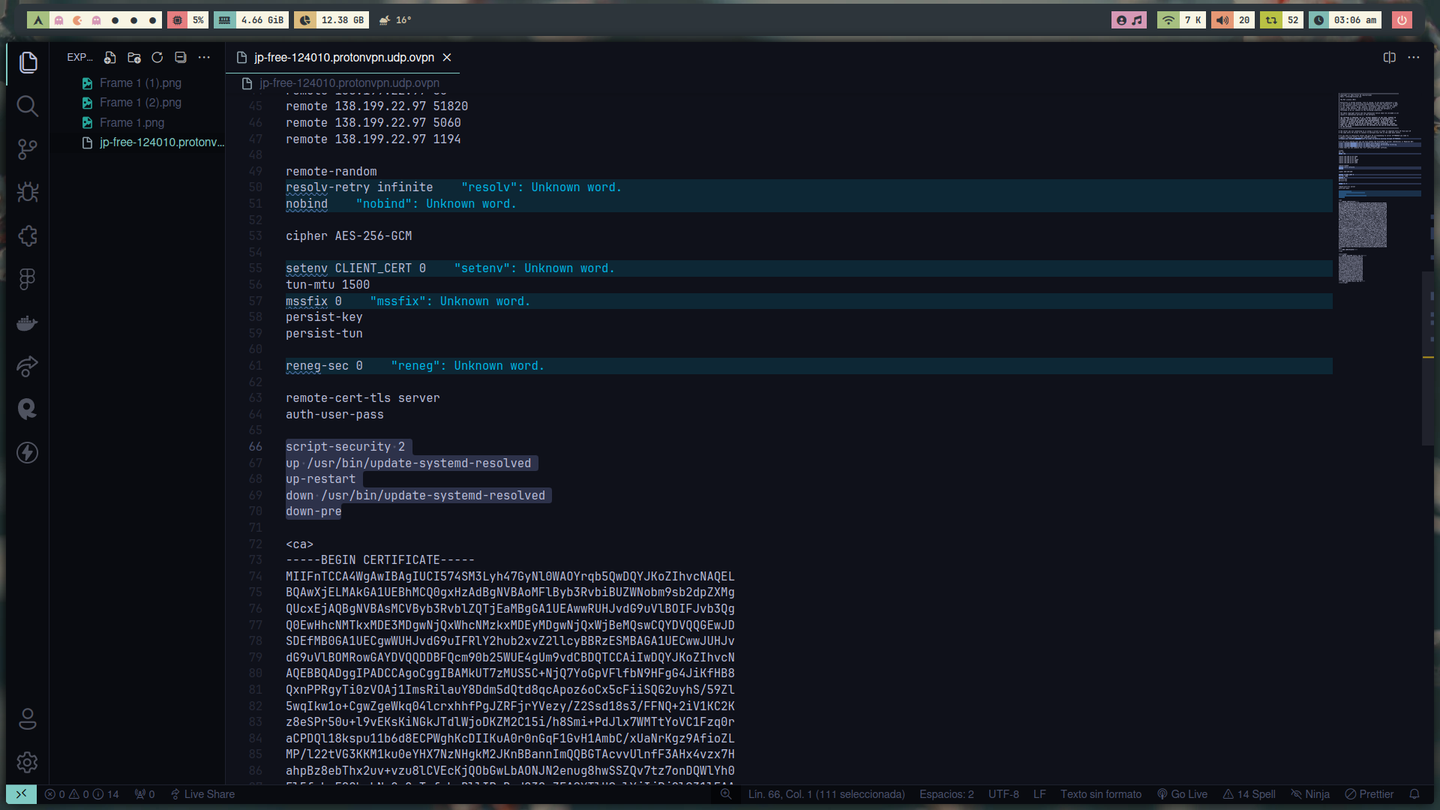
Step 4
After modifying our file, let's rename it—if you want—to something shorter. In my case, I'll call it jp.ovpn. We'll move or copy this to the folder /etc/openvpn/client/. But you have to be logged in as a superuser to do this.
Remember that you have to replace jp.ovpn by the file name it has or the one you changed it to.# Copiamos el archivo *.ovpn a /etc/openvpn/client/
sudo cp jp.ovpn /etc/openvpn/client/As we near the end, we will begin the services:
# Comprobamos el status del servicio.
sudo systemctl status systemd-resolved

# En el caso que este desactivo lo activamos con
sudo systemctl start systemd-resolved
Now let's start OpenVPN with this script:
# Iniciar OpenVPN
sudo openvpn /etc/openvpn/client/jp.ovpn
Step 5
At this point, you should already see authentication messages on your terminal. To find these values, we need to go back to the Proton page, in the section account. Here, we'll scroll down a little.
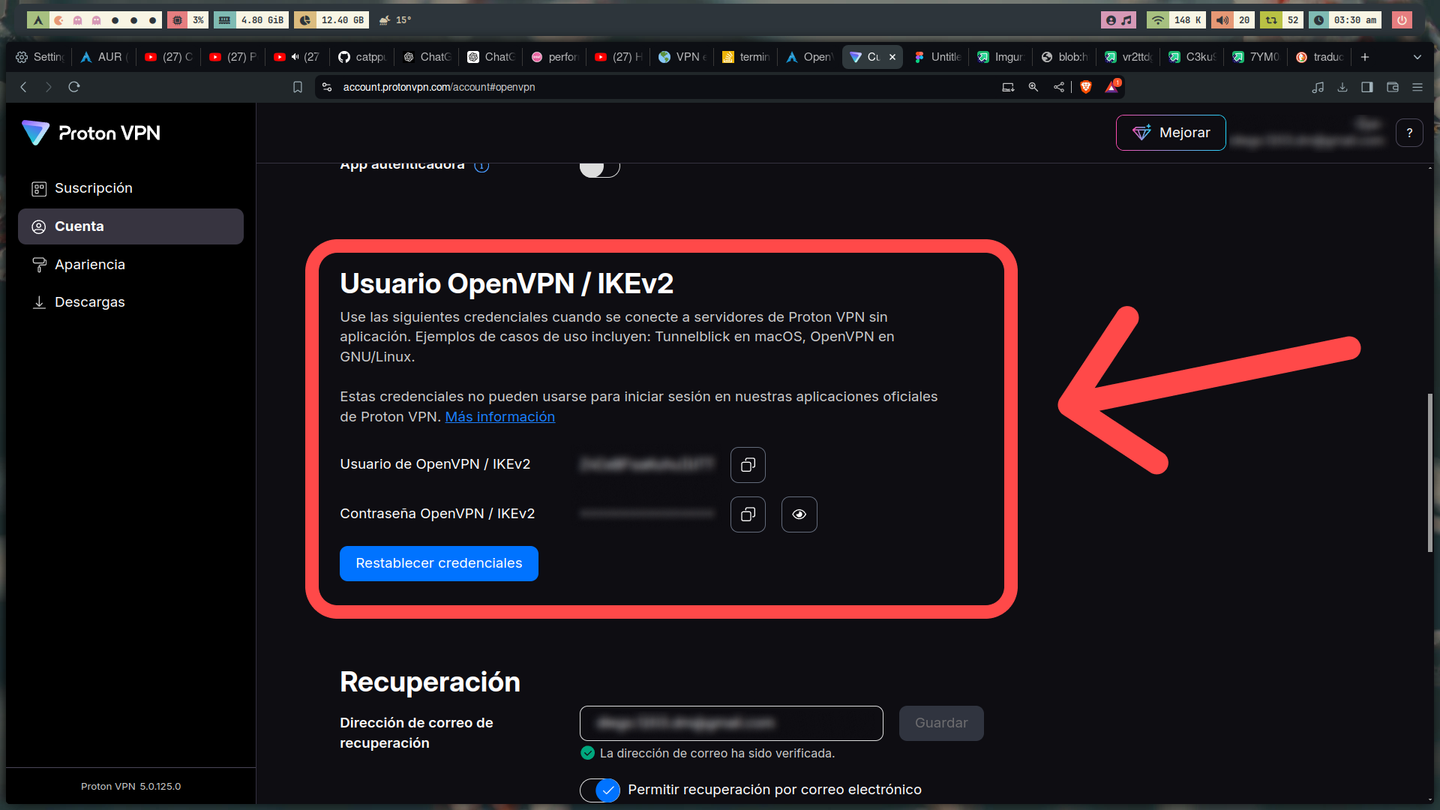
Copy and paste the credentials into your terminal.
NOTE: If you get an error when logging in, cache, reset the credentials using the blue button at the bottom where the credentials are displayed.
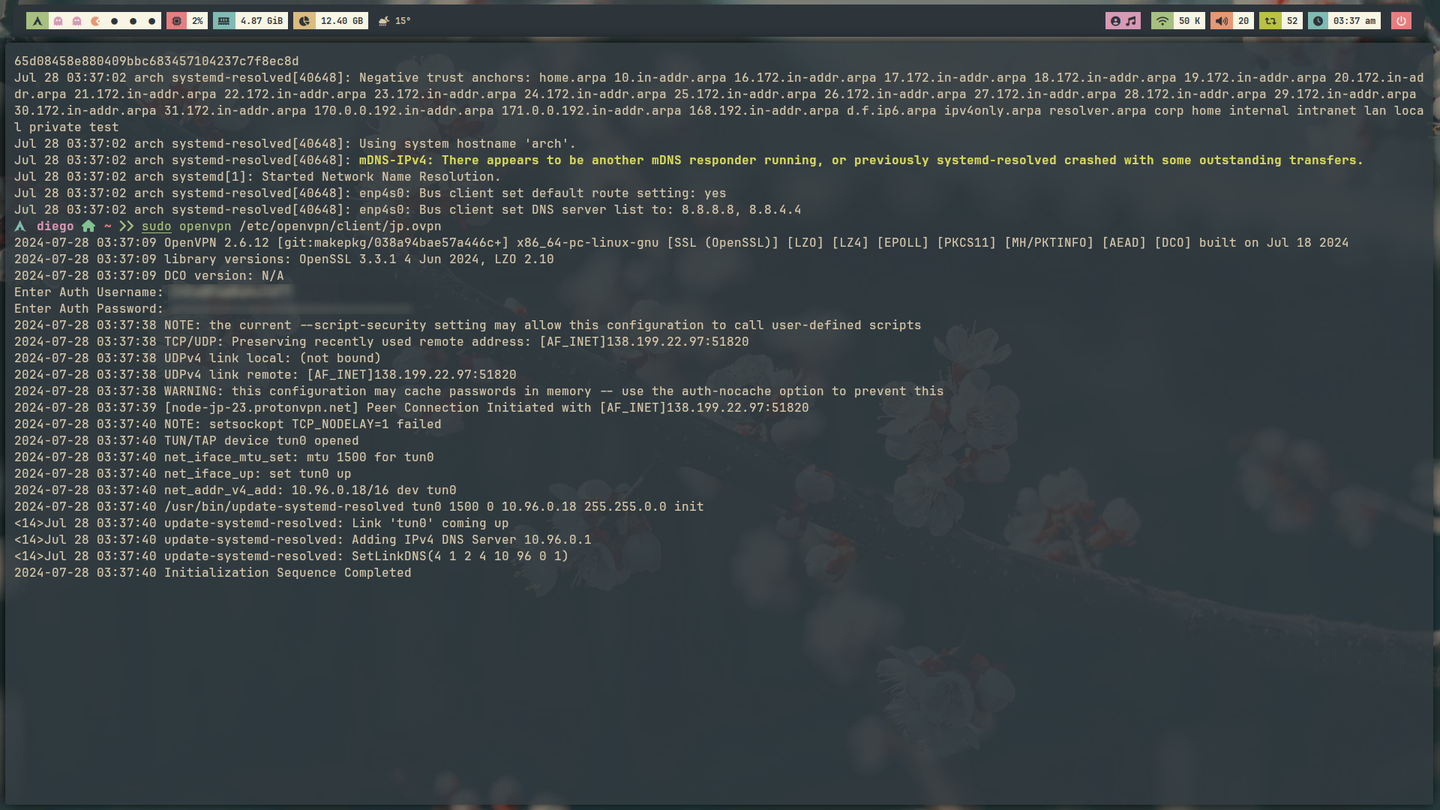
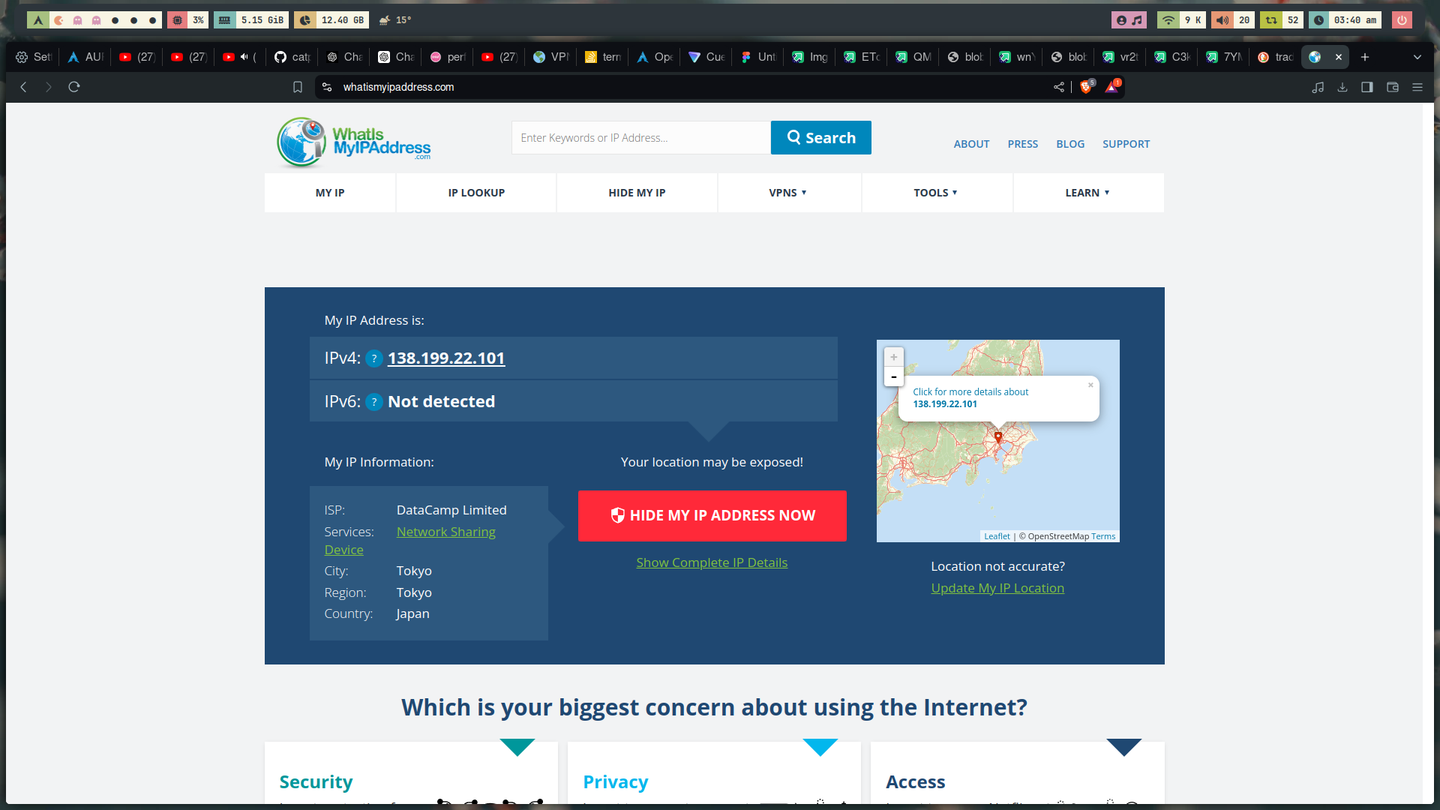
And with that, you'll finally be connected to the Internet in another country.
Conclusion
Yep, that's what being a huge fan of a singer can do to me—make me listen to her music, even though it's banned in my country. But hey, now I can enjoy my favorite album of hers.